
Your Accumedic environment has moved
We've migrated the Accumedic platform to Microsoft Azure for improved reliability and performance. As part of the move, your password is being reset — you should have received a separate email with instructions to set your new password. Once you've completed that step, follow the instructions below to connect.
Download the new connection
Install the updated shortcut for the AccuMed 12 Practice Management application. This replaces the old shortcut you were using before the move.
Download RDP shortcutAccuMed12_signed.rdp · opens with Remote Desktop ConnectionLog into the EMR
The Electronic Medical Record is available at its new web address. Bookmark this link and replace any old saved favorites that no longer work.
Open the EMRemr.accumedcloud.netWhat you need to do
- Reset your password first. You should have received a separate email with instructions to set your new password. Complete that step before connecting.
- Download the new RDP shortcut using the button above and save it to your Desktop.
- Delete your old Accumedic / AccuMed PM shortcut. The previous connection points to the old data center and will no longer work.
- Open the new shortcut, approve the connection options shown below, and sign in with your new password when prompted.
- For the EMR, use the new sign-in link above and update any bookmarks to
emr.accumedcloud.net.
Approving the connection (one-time)
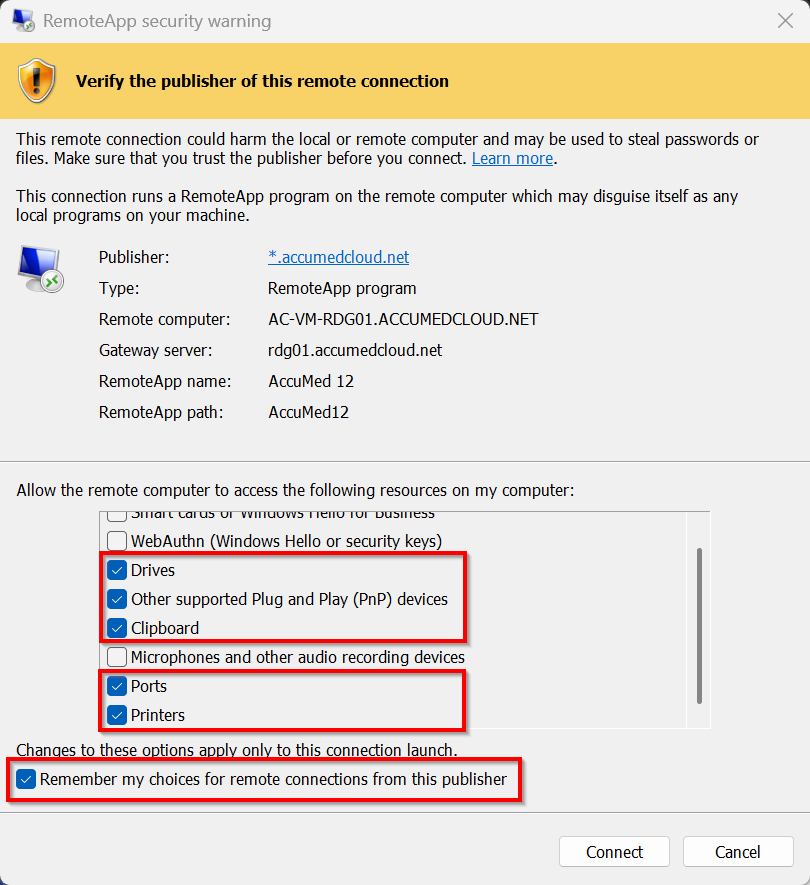
After recent Windows updates, the first time you open the shortcut you'll see a
RemoteApp security warning asking which resources to share with the remote
application. This is expected. First confirm the Publisher reads
*.accumedcloud.net and the Gateway server reads
rdg01.accumedcloud.net — then check the boxes highlighted below so AccuMed 12
can use your printers, scanners, and other devices:
- Drives — lets you save and open files between your computer and AccuMed 12.
- Other supported Plug and Play (PnP) devices — required for signature pads, scanners, and similar hardware.
- Clipboard — lets you copy and paste between your computer and AccuMed 12.
- Ports — required for COM-port devices such as methadone pumps and serial peripherals.
- Printers — lets you print to your local printers.
- Remember my choices for remote connections from this publisher — check this so you won't be prompted again on this computer.
Then click Connect. The microphone and Windows Hello / security-key options can be left unchecked.
*.accumedcloud.net. If the publisher looks different or you can't connect,
contact support before entering your password.